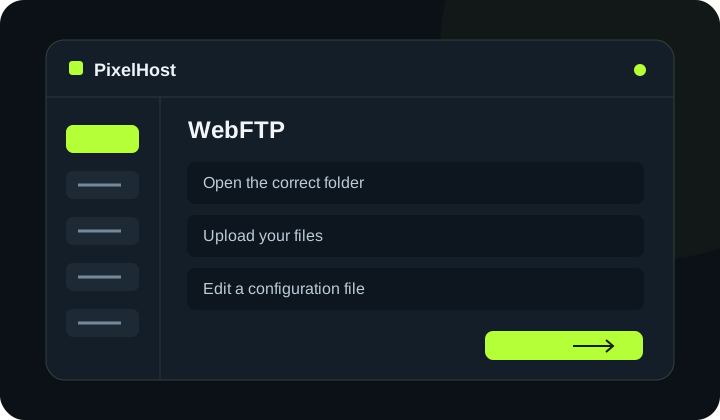
At a glance Upload a plugin, edit configuration files and refresh the file list without a separate FTP application.
1. Open the correct folder
Open WebFTP in your Minecraft panel and check the path above the file list. Put plugins in the plugins folder when using compatible plugin server software. Put mods in the mods folder when using a compatible mod loader.
2. Upload your files
Click Upload files (Prześlij pliki) and choose files from your computer. Watch the progress indicator and wait for the result. Keep the tab open during the transfer, and save a copy of any file you are about to replace.
3. Edit a configuration file
Open a text file in the editor. Syntax highlighting helps you read YAML, JSON and server.properties. Use Find in file (Znajdź w pliku) to locate a setting. Preserve YAML indentation and valid JSON syntax, then click Save file (Zapisz plik).
4. Refresh the file list
Click Refresh files (Odśwież pliki) after files have been changed by the server, another FTP application or a reinstallation. This reloads the current list; it does not restore deleted data or save changes in an open editor.
5. Finish without losing changes
Check for unsaved changes before closing the editor. Read the confirmation before deleting several files or a folder. Once all operations have finished, start the server if it was stopped and check the logs.
Check that your changes have completed.
Wait for confirmation in the panel and check that the change applies to the correct service. If you need help, include the service number and the exact message in your support ticket.
Back to the knowledge base