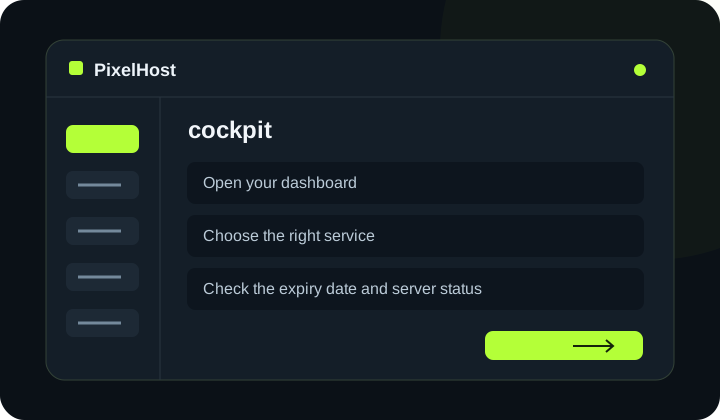
At a glance Find your services, check their expiry dates and open your server's management page.
1. Open your dashboard
Sign in to the client panel and select Dashboard (Kokpit) in the left menu. You will see your account summary and services. Your account balance is the money available to spend in the panel.
2. Choose the right service
Under Your services (Twoje usługi), choose Minecraft, VPS or Domains. Find the service by its name or number and open its management page. If you own several servers, also check the IP address before making changes.
3. Check the expiry date and server status
Check the paid-until date in the service details. An active subscription does not necessarily mean the server is running: a paid Minecraft server can be stopped. Check its running status in the server panel.
4. Find the tool you need
In the Minecraft panel, open the tab that matches what you want to do.
- Console (Konsola) — server logs and commands.
- Configuration (Konfiguracja) — basic game settings.
- WebFTP — files and the configuration editor.
- Backups (Kopie zapasowe) — create and restore backups.
- Installer (Instalator) — choose server software and a version.
5. Contact support when you need help
Select Technical support (Pomoc techniczna) in the account menu. Choose the affected service and explain what you are trying to do. Including the server number helps the team identify the right service.
Check that your changes have completed.
Wait for confirmation in the panel and check that the change applies to the correct service. If you need help, include the service number and the exact message in your support ticket.
Back to the knowledge base