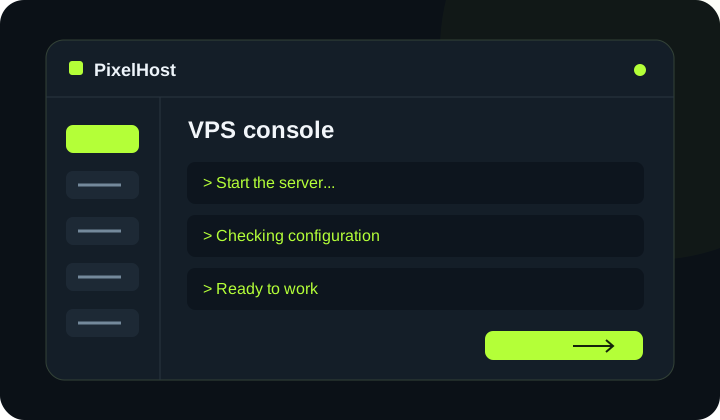
At a glance Connect to your VPS screen in the browser and see what is happening in the operating system.
1. Select your VPS
In the left menu, open Your services → VPS servers (Twoje usługi → Serwery VPS). Select the correct server by checking its number and IP address. Check its status before connecting.
2. Open the console
Start the connection in the console section and wait for confirmation. The browser console shows your operating system's screen; it is different from an SSH session.
3. Sign in to the operating system
Click the console screen and enter your VPS operating system credentials if prompted. Your client panel login does not replace the system password. Linux may show no characters while you type a password.
4. Use full-screen mode
Once connected, you can select Full screen (Pełny ekran). When finished, log out of the operating system and choose Disconnect (Rozłącz). Disconnecting the console does not stop your VPS.
5. If the connection fails
Check the panel message and try opening the console again. If the error returns, give support your VPS number, the time of the attempt and the message. Do not reinstall the OS just to fix the console view: reinstallation deletes system data.
Check that your changes have completed.
Wait for confirmation in the panel and check that the change applies to the correct service. If you need help, include the service number and the exact message in your support ticket.
Back to the knowledge base