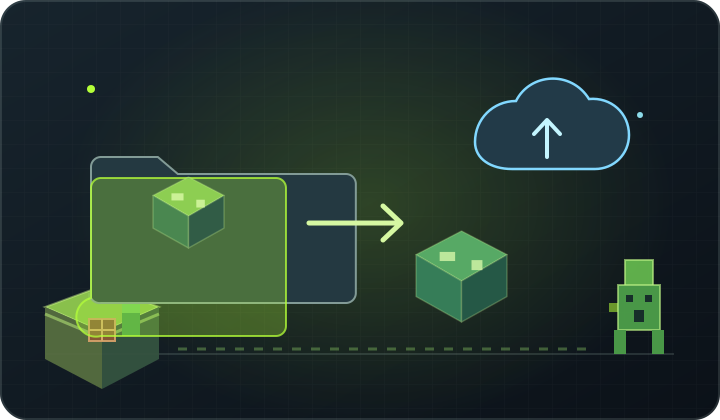
At a glance Stop the server, download the complete world and configure and then check the correct import record.
1. Prepare the source backup
Stop the server on your computer. backup the world folder and save the server.properties file and the list of plugins or mods used. Do not only move the region folder — the world also has data files, dimensions and configurations.
2. Check engine and version
On the target server, select a compatible engine and version of the game. If the world uses mods, first load the compatible loader and the required mods. Changing the version or removing the mods may affect the blocks, objects and generation of the world.
3. Upload files after stopping service
Stop the destination server and use the file manager or FTP. Upload the entire world folder to the server directory. Set exactly the name of the world that the folder has in configuration. Save existing configuration files if they contain the necessary settings.
4. Run the test and do not delete the old backup
Start the server and check the logs. Enter the world, visit familiar places, check the equipment and other dimensions. Only after you have confirmed the correct transfer do you prepare a new backup. Save the source files for a few days.
Back up first. Change one thing at a time.
Back up your working files, make a change and check the logs. Changing one thing at a time makes it easier to find the cause of a problem and restore your previous settings.
Back to the knowledge base